Social Posts skill
Researches a topic, then writes LinkedIn posts or X threads with an image.
A Premium skill. Premium opens soon.
- By
- LangChain
- Licence
- MIT
- Installs
- 2.7K
- Works in
- 17 apps
What Social Posts makes
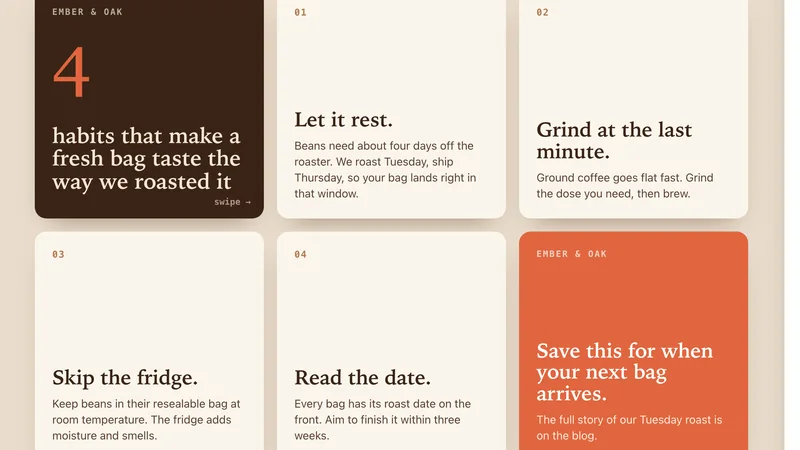
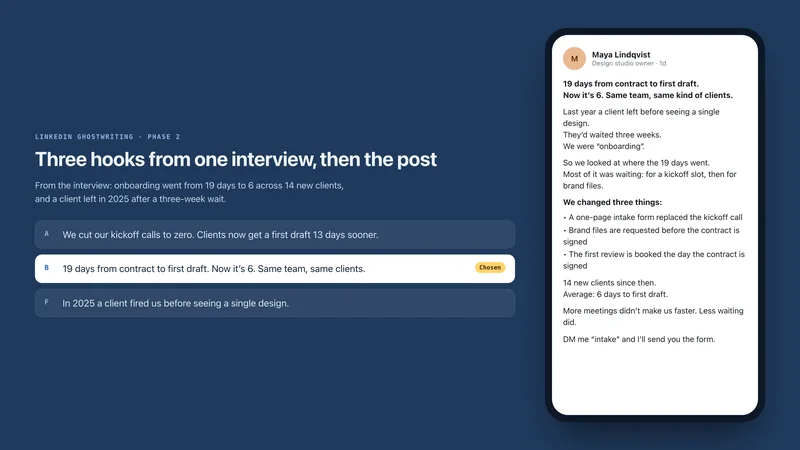
Writes social posts the careful way: research first, then the post. It covers LinkedIn posts and Twitter/X threads, with hooks, hashtag ideas and thread structure.
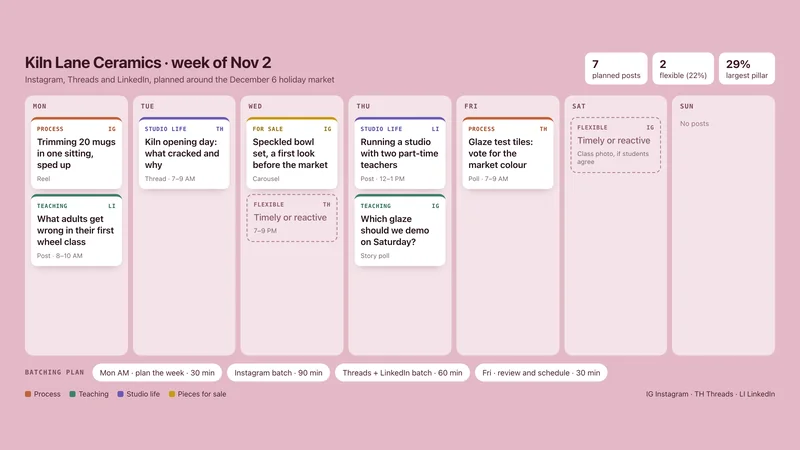
Each post is saved in its own folder with the text and a matching image. This skill is written for an agent setup that has a researcher helper and image tools, so it works best where those exist.
Best for: Creators and teams who want researched posts with visuals.
- Research step before writing
- LinkedIn posts and X threads
- Hooks, hashtags and thread structure
- A companion image for every post
Example prompts
Type something like this once the skill is added. Your app opens the skill when the request matches.
-
Write a LinkedIn post about our new feature
-
Turn this blog post into an X thread
-
Give me five hook options for this topic
-
Make a post and an image about prompt engineering
What’s inside
2 files in the skill folder, with its MIT licence kept inside. Only text instructions and reference files, no program files.
- SKILL.md the instructions
- LICENSE licence
Which apps it works in
A skill is a folder of plain files, so any app that reads the open skills format can use it. Pick your app for its page.
How to add Social Posts to your app
Step by step for each app. We say where to click, so you never need to leave this page.
ChatGPTby OpenAI
- 1 Download the skill (.zip) with the button at the top of this page, then unzip it.
- 2 Open the ChatGPT desktop app and look for Skills in the sidebar, where standalone skills are listed.
- 3 Add the “social-media” folder there if your version offers it. If you do not see Skills yet, use this skill in Claude or Codex instead.
- 4 In a chat, type @ and pick the skill, or just ask. Ask for what you want, for example: “Write a LinkedIn post about our new feature”
To make your own, describe the workflow to @skill-creator in ChatGPT Work and it drafts a skill for you.
Claude appby Anthropic
- 1 Download the skill (.zip) with the button at the top of this page.
- 2 In the Claude app, open Settings > Features.
- 3 Upload the .zip file.
- 4 Ask for what you want, for example: “Write a LinkedIn post about our new feature”
The current Claude Help Center lists Free, Pro, Max, Team and Enterprise. Organization policy can restrict uploads and sharing. Chat runs code in an isolated environment; uploading a skill does not give it your local project, coding-agent tools or unrestricted network access.
Codexby OpenAI
- 1 Download the skill (.zip) with the button at the top of this page, then unzip it.
- 2 Move the “social-media” folder into your skills folder:
~/.agents/skills - 3 Or paste the install prompt below into Codex and let it do the copying.
- 4 Start a new session. Ask for what you want, for example: “Write a LinkedIn post about our new feature”
Install prompt: paste this into Codex
I downloaded the agent skill "Social Posts" as social-media.zip. Unzip it and copy the social-media folder into ~/.agents/skills. Before you finish, list every file it contains, show me any scripts and what they do, and stop if anything asks for passwords, API keys or downloads from other websites.
To use the skill in one project only, put it in .agents/skills inside that project instead.
Claude Codeby Anthropic
- 1 Download the skill (.zip) with the button at the top of this page, then unzip it.
- 2 Move the “social-media” folder into your skills folder:
~/.claude/skills - 3 Or paste the install prompt below into Claude Code and let it do the copying.
- 4 Start a new session. Ask for what you want, for example: “Write a LinkedIn post about our new feature”
Install prompt: paste this into Claude Code
I downloaded the agent skill "Social Posts" as social-media.zip. Unzip it and copy the social-media folder into ~/.claude/skills. Before you finish, list every file it contains, show me any scripts and what they do, and stop if anything asks for passwords, API keys or downloads from other websites.
Built-in installer: claude plugin marketplace add <owner/repo>
Built-in installer: claude plugin install <plugin>@<marketplace>
To use the skill in one project only, put it in .claude/skills inside that project instead.
Cursor
- 1 Download the skill (.zip) with the button at the top of this page, then unzip it.
- 2 Move the “social-media” folder into your skills folder:
~/.cursor/skills - 3 Or paste the install prompt below into Cursor and let it do the copying.
- 4 Start a new session. Ask for what you want, for example: “Write a LinkedIn post about our new feature”
Install prompt: paste this into Cursor
I downloaded the agent skill "Social Posts" as social-media.zip. Unzip it and copy the social-media folder into ~/.cursor/skills. Before you finish, list every file it contains, show me any scripts and what they do, and stop if anything asks for passwords, API keys or downloads from other websites.
To use the skill in one project only, put it in .cursor/skills inside that project instead. Cursor also reads ~/.agents/skills, ~/.claude/skills, ~/.codex/skills.
GitHub Copilotby GitHub
- 1 Download the skill (.zip) with the button at the top of this page, then unzip it.
- 2 Move the “social-media” folder into your skills folder:
~/.copilot/skills - 3 Or paste the install prompt below into GitHub Copilot and let it do the copying.
- 4 Start a new session. Ask for what you want, for example: “Write a LinkedIn post about our new feature”
Install prompt: paste this into GitHub Copilot
I downloaded the agent skill "Social Posts" as social-media.zip. Unzip it and copy the social-media folder into ~/.copilot/skills. Before you finish, list every file it contains, show me any scripts and what they do, and stop if anything asks for passwords, API keys or downloads from other websites.
Built-in installer: gh skill install <owner/repo> <skill> --agent github-copilot --scope user
To use the skill in one project only, put it in .github/skills inside that project instead. GitHub Copilot also reads ~/.agents/skills.
Gemini CLIby Google
- 1 Download the skill (.zip) with the button at the top of this page, then unzip it.
- 2 Move the “social-media” folder into your skills folder:
~/.gemini/skills - 3 Or paste the install prompt below into Gemini CLI and let it do the copying.
- 4 Start a new session. Ask for what you want, for example: “Write a LinkedIn post about our new feature”
Install prompt: paste this into Gemini CLI
I downloaded the agent skill "Social Posts" as social-media.zip. Unzip it and copy the social-media folder into ~/.gemini/skills. Before you finish, list every file it contains, show me any scripts and what they do, and stop if anything asks for passwords, API keys or downloads from other websites.
Built-in installer: gemini skills install <git-url>
To use the skill in one project only, put it in .gemini/skills inside that project instead. Gemini CLI also reads ~/.agents/skills.
Windsurf
- 1 Download the skill (.zip) with the button at the top of this page, then unzip it.
- 2 Move the “social-media” folder into your skills folder:
~/.codeium/windsurf/skills - 3 Or paste the install prompt below into Windsurf and let it do the copying.
- 4 Start a new session. Ask for what you want, for example: “Write a LinkedIn post about our new feature”
Install prompt: paste this into Windsurf
I downloaded the agent skill "Social Posts" as social-media.zip. Unzip it and copy the social-media folder into ~/.codeium/windsurf/skills. Before you finish, list every file it contains, show me any scripts and what they do, and stop if anything asks for passwords, API keys or downloads from other websites.
To use the skill in one project only, put it in .windsurf/skills inside that project instead.
Kiro
- 1 Download the skill (.zip) with the button at the top of this page, then unzip it.
- 2 Move the “social-media” folder into your skills folder:
~/.kiro/skills - 3 Or paste the install prompt below into Kiro and let it do the copying.
- 4 Start a new session. Ask for what you want, for example: “Write a LinkedIn post about our new feature”
Install prompt: paste this into Kiro
I downloaded the agent skill "Social Posts" as social-media.zip. Unzip it and copy the social-media folder into ~/.kiro/skills. Before you finish, list every file it contains, show me any scripts and what they do, and stop if anything asks for passwords, API keys or downloads from other websites.
To use the skill in one project only, put it in .kiro/skills inside that project instead.
Antigravityby Google
- 1 Download the skill (.zip) with the button at the top of this page, then unzip it.
- 2 Move the “social-media” folder into your skills folder:
~/.gemini/antigravity/skills - 3 Or paste the install prompt below into Antigravity and let it do the copying.
- 4 Start a new session. Ask for what you want, for example: “Write a LinkedIn post about our new feature”
Install prompt: paste this into Antigravity
I downloaded the agent skill "Social Posts" as social-media.zip. Unzip it and copy the social-media folder into ~/.gemini/antigravity/skills. Before you finish, list every file it contains, show me any scripts and what they do, and stop if anything asks for passwords, API keys or downloads from other websites.
To use the skill in one project only, put it in .agents/skills inside that project instead.
OpenCode
- 1 Download the skill (.zip) with the button at the top of this page, then unzip it.
- 2 Move the “social-media” folder into your skills folder:
~/.config/opencode/skills - 3 Or paste the install prompt below into OpenCode and let it do the copying.
- 4 Start a new session. Ask for what you want, for example: “Write a LinkedIn post about our new feature”
Install prompt: paste this into OpenCode
I downloaded the agent skill "Social Posts" as social-media.zip. Unzip it and copy the social-media folder into ~/.config/opencode/skills. Before you finish, list every file it contains, show me any scripts and what they do, and stop if anything asks for passwords, API keys or downloads from other websites.
To use the skill in one project only, put it in .opencode/skills inside that project instead. OpenCode also reads ~/.agents/skills, ~/.claude/skills.
Cline
- 1 Download the skill (.zip) with the button at the top of this page, then unzip it.
- 2 Move the “social-media” folder into your skills folder:
~/.agents/skills - 3 Or paste the install prompt below into Cline and let it do the copying.
- 4 Start a new session. Ask for what you want, for example: “Write a LinkedIn post about our new feature”
Install prompt: paste this into Cline
I downloaded the agent skill "Social Posts" as social-media.zip. Unzip it and copy the social-media folder into ~/.agents/skills. Before you finish, list every file it contains, show me any scripts and what they do, and stop if anything asks for passwords, API keys or downloads from other websites.
To use the skill in one project only, put it in .agents/skills inside that project instead.
Amp
- 1 Download the skill (.zip) with the button at the top of this page, then unzip it.
- 2 Move the “social-media” folder into your skills folder:
~/.config/agents/skills - 3 Or paste the install prompt below into Amp and let it do the copying.
- 4 Start a new session. Ask for what you want, for example: “Write a LinkedIn post about our new feature”
Install prompt: paste this into Amp
I downloaded the agent skill "Social Posts" as social-media.zip. Unzip it and copy the social-media folder into ~/.config/agents/skills. Before you finish, list every file it contains, show me any scripts and what they do, and stop if anything asks for passwords, API keys or downloads from other websites.
Built-in installer: amp skill add <github-url> --global
To use the skill in one project only, put it in .agents/skills inside that project instead. Amp also reads ~/.agents/skills, ~/.config/amp/skills, ~/.claude/skills.
Gooseby Block
- 1 Download the skill (.zip) with the button at the top of this page, then unzip it.
- 2 Move the “social-media” folder into your skills folder:
~/.agents/skills - 3 Or paste the install prompt below into Goose and let it do the copying.
- 4 Start a new session. Ask for what you want, for example: “Write a LinkedIn post about our new feature”
Install prompt: paste this into Goose
I downloaded the agent skill "Social Posts" as social-media.zip. Unzip it and copy the social-media folder into ~/.agents/skills. Before you finish, list every file it contains, show me any scripts and what they do, and stop if anything asks for passwords, API keys or downloads from other websites.
To use the skill in one project only, put it in .agents/skills inside that project instead. Goose also reads ~/.claude/skills.
OpenClaw
- 1 Download the skill (.zip) with the button at the top of this page, then unzip it.
- 2 Move the “social-media” folder into your skills folder:
~/.openclaw/skills - 3 Or paste the install prompt below into OpenClaw and let it do the copying.
- 4 Start a new session. Ask for what you want, for example: “Write a LinkedIn post about our new feature”
Install prompt: paste this into OpenClaw
I downloaded the agent skill "Social Posts" as social-media.zip. Unzip it and copy the social-media folder into ~/.openclaw/skills. Before you finish, list every file it contains, show me any scripts and what they do, and stop if anything asks for passwords, API keys or downloads from other websites.
Built-in installer: openclaw skills install @owner/<slug>
Built-in installer: openclaw skills install @owner/<slug> --global
Built-in installer: openclaw skills install git:owner/repo@ref
To use the skill in one project only, put it in skills inside that project instead. OpenClaw also reads ~/.agents/skills.
Hermes Agentby Nous Research
- 1 Download the skill (.zip) with the button at the top of this page, then unzip it.
- 2 Move the “social-media” folder into your skills folder:
~/.hermes/skills - 3 Or paste the install prompt below into Hermes Agent and let it do the copying.
- 4 Start a new session. Ask for what you want, for example: “Write a LinkedIn post about our new feature”
Install prompt: paste this into Hermes Agent
I downloaded the agent skill "Social Posts" as social-media.zip. Unzip it and copy the social-media folder into ~/.hermes/skills. Before you finish, list every file it contains, show me any scripts and what they do, and stop if anything asks for passwords, API keys or downloads from other websites.
Built-in installer: hermes skills install <owner/repo/skill>
VS Codeby Microsoft
- 1 Download the skill (.zip) with the button at the top of this page, then unzip it.
- 2 Move the “social-media” folder into your skills folder:
~/.copilot/skills - 3 Or paste the install prompt below into VS Code and let it do the copying.
- 4 Start a new session. Ask for what you want, for example: “Write a LinkedIn post about our new feature”
Install prompt: paste this into VS Code
I downloaded the agent skill "Social Posts" as social-media.zip. Unzip it and copy the social-media folder into ~/.copilot/skills. Before you finish, list every file it contains, show me any scripts and what they do, and stop if anything asks for passwords, API keys or downloads from other websites.
To use the skill in one project only, put it in .github/skills inside that project instead. VS Code also reads ~/.claude/skills, ~/.agents/skills.
Questions about Social Posts
Does it work in any chat?
It expects a researcher helper and image generation. In simpler tools you may need to adjust the steps.
Does every post get an image?
Yes, the skill says each post must have both content and an image.
Is the Social Posts skill free?
It is a Premium skill on Best Agent Skills. Premium opens soon, with monthly, yearly and lifetime plans on the pricing page.
Who made the Social Posts skill?
LangChain. We did not write it. Best Agent Skills curates skills like this one, explains them in plain words and shows how to add them to your app. It is shared under the MIT licence (Copyright (c) LangChain, Inc.).